

Tabular Review Overview
Tabular Review transforms unstructured legal documents into filterable, analyzable datasets. Documents become rows; extracted data points become columns. Each extracted answer traces back to its source through citations. This is designed for due diligence, portfolio reviews, compliance audits, discovery, and any workflow where you need structured comparison across many documents.
This video show how to create a Tabular Review from Assistant.
How Tabular Review Works
Add documents: Upload files or select folders from your workspace.
Define columns: Specify what to extract from each document. Choose response types like text, boolean, number, date, or select options.
Run extraction: August analyzes each document and populates cells with extracted values.
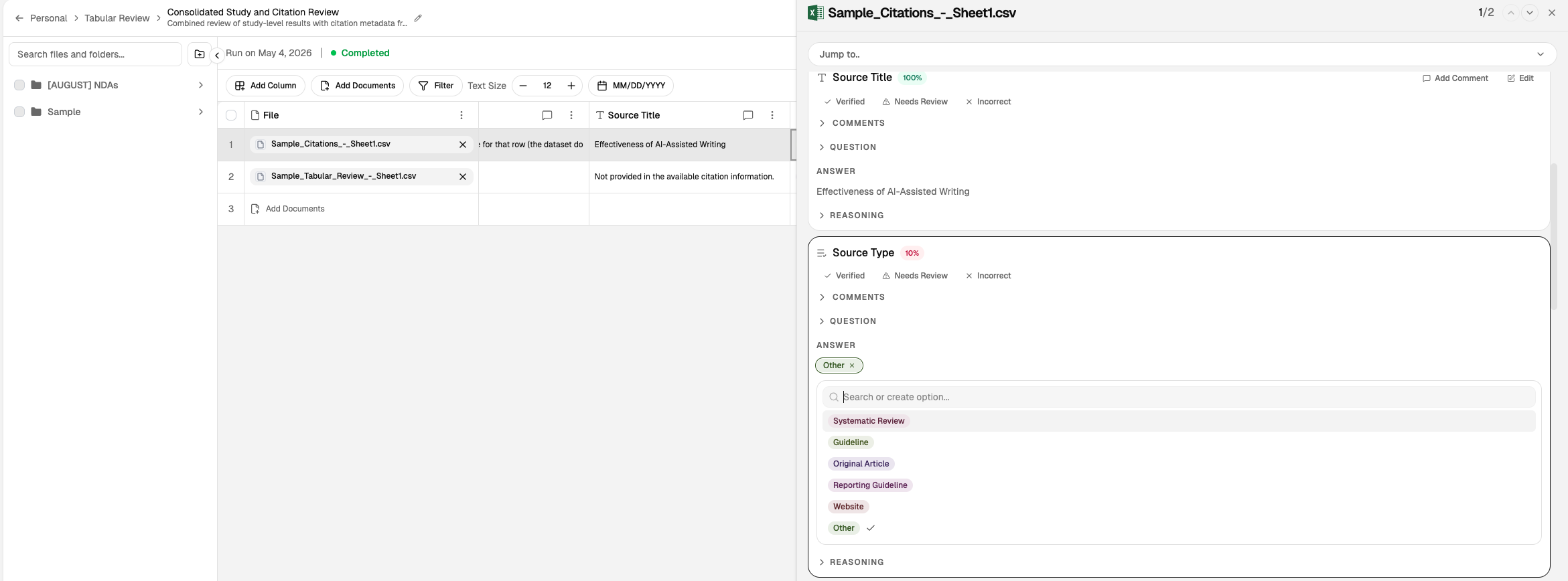
Verify with citations: Each cell links to the source passage. Click to confirm the extraction matches the document.
Export and use: Download as Excel or CSV for downstream analysis, or continue refining in August.
This video shoes how to build a tabular review from scratch.
Three Ways to Build a Review
Choose the method that fits your workflow:
Method | How It Works | Best For |
|---|---|---|
Via Assistant | Describe the extraction task in natural language; August proposes columns automatically | Fast setup, exploratory extraction |
Manual Setup | Define columns, response types, prompts, and document scope through dedicated interface | Precise control, repeatable schemas |
CSV Import | Upload existing CSV; August detects schema, populates table, optionally enriches with AI | Migration, hybrid manual/AI analysis |
Path A: Via Assistant
Attach docs
Upload or connect the documents you want to analyze.
Describe in English
Tell August what to extract in plain language.
August proposes columns
AI suggests column structure based on your description.
Populated table
Review and refine the populated table.
Path B: Manual Setup
New Review
Create a new Tabular Review from scratch.
Define columns + types
Add each column, specify response type, and write extraction prompts.
Select scope · run
Choose documents and run extraction.
Populated table
Review results and iterate as needed.
Path C: CSV Import
Upload .csv
Import an existing CSV with your data.
August detects schema
AI identifies columns and data types automatically.
Adjust · enrich with AI
Modify columns and optionally enhance with AI extraction.
Populated table
Review and export the enriched table.
All three paths converge on the same interactive table output.
This video explains how citations work in Tabular Review..
Column Types and Response Formats
When building a Tabular Review, each column extracts a specific type of information. Choose the response type that matches the data you're extracting:
Type | Description | Example Use |
|---|---|---|
Text | Free-form text output | Party names, clause summaries, descriptions |
Boolean | Yes/No or True/False | Does the contract contain an arbitration clause? |
Number | Numeric values | Contract value, liability caps, term length |
Date | Date values in ISO format | Effective date, expiration date, renewal dates |
Single select | One option from a predefined list | Governing law jurisdiction |
Multi select | Multiple options from a predefined list | IP types covered |
Verbatim | Exact language from source document | Specific clause text, defined terms |
Auto | August chooses the most suitable format | When you want the system to infer the best type |
For detailed response type guidance, see Column Types and Response Formats.
Per-File vs. Per-Folder Analysis
Per-file analysis: Evaluates each document independently, typically one row per file. Use when each document should be treated as a separate unit.
Folder-level analysis: Treats related documents as one unit. Use when answers depend on cross-document context (agreements with exhibits, amendments, or related correspondence).
Choose analysis mode based on whether context spans multiple files. This decision materially affects extraction behavior and interpretation.
Templates and Reuse
Create templates from Tabular Review and reuse them across document sets:
A template stores recurring questions/columns so teams avoid rebuilding the same structure.
Save any review as a template for future use.
Template reuse improves consistency across matters.
Use clear template naming to support collaboration. Consistent column typing when creating templates ensures columns and options are preserved.
Exporting Template Prompts
When you want to review or share your template configuration outside August, export the prompts as a spreadsheet:
Open the Templates modal from a Tabular Review.
Click the download icon on the template card.
The export creates an Excel file with columns for Name, Type, Prompt, Options, Web Search, and Reference Document Count.
Filename: <template-name>-prompts.xlsx.
If the template has no columns, the export shows a "no columns to export" message.
Exporting and Downstream Use
Tabular Review exports to formats lawyers already use:
Excel (.xlsx): Full spreadsheet with formatting and formulas.
CSV: Portable data for import into other systems.
Exported outputs are useful for partner updates, diligence summaries, and downstream drafting. Before downstream use, validate key fields against cited source text. Use filters to narrow the view before export for issue-specific reporting.
Exporting Column Prompts
If you need to document or share the prompts that power your Tabular Review, you can export them as a Word document:
Open the Tabular Review you want to export.
Click Download in the toolbar.
Select Download Prompts.
The exported .docx file contains one section per column, including:
Column name and response type
Prompt text
Choice options (for select columns)
Web search and reference document settings
The filename follows the pattern <review-name>-column-prompts.docx.
Export fails if the review has no columns. If the download cannot be generated, you'll see an error message.
This export is different from exporting the review results themselves. Use Download Prompts when you want to share or review the extraction logic, not the extracted data.
Collaboration and Notifications
Work together in real time on Tabular Reviews:
Share reviews: Share a tabular review with colleagues for collaborative review.
Comments: Collaborators can comment on individual cells to ask questions or flag issues.
Verification flags: Track which cells have been verified and which need review to maintain a clear review trail.
Stay informed with in-app and email notifications when colleagues make changes or add comments.
Delete Reviews
Remove Tabular Reviews you no longer need from the reviews list. Deleted reviews disappear immediately and cannot be reopened. See Delete Tabular Reviews for the deletion workflow and how it affects shared reviews.
When to Use Tabular Review
Due diligence: Extract key terms from NDAs, MSAs, and purchase agreements across a deal room.
Portfolio reviews: Compare lease terms, liability caps, or renewal dates across a document set.
Compliance audits: Check for required clauses, signature blocks, or regulatory language across contracts.
Discovery: Organize extracted facts from productions for case analysis.
How It Differs from Assistant
Use Tabular Review when you need structured comparison across many documents. Use Assistant when you need conversational analysis of one or a few documents.
Tabular Review is built for repeatable, large-scale extraction where consistency matters. Each column follows the same definition across all rows, enabling reliable comparison.
Size Limits and Large Document Sets
Tabular Review enforces a 10,000-cell safeguard to ensure reliable performance. The system estimates cell count as rows (documents) × columns before running extraction, and requests that exceed this limit are declined.
For large document sets, August uses efficient chunk-based counting to estimate size without loading full document content. If a request is clearly oversized—for example, if the number of documents multiplied by the number of columns already exceeds 10,000—the system skips expensive preflight calculations and rejects the request quickly.
If your extraction task hits the cell limit, reduce the document scope, create multiple smaller reviews, or remove non-essential columns.
What counts as a cell
A cell is one extracted value for one document. A review with 200 documents and 25 columns produces 5,000 cells (200 × 25). Adding more documents or more columns increases the cell count proportionally.
Working within the limit
If you need to analyze a large corpus:
Split into multiple reviews: Create separate reviews for subsets of documents (by folder, date range, or document type).
Reduce column count: Extract only the most critical fields in the initial pass.
Use filters before extraction: Narrow the document scope before running the review.
For very large extractions that cannot be split, contact your account manager to discuss alternative approaches.
What to Read Next
Column Types and Response Formats for response type reference
Delete Tabular Reviews to remove reviews you no longer need
Assistant Overview for creating reviews from chat