

Drafts
Drafts are the work product outputs you generate within Assistant conversations—first-pass memos, summaries, and document drafts built from your matter context. Each draft includes citations tracing back to source documents, so you can verify before you rely. Export drafts when ready and continue revisions in Word.
What Drafts Are
Drafts are structured outputs created directly from Assistant conversations:
First-pass memos and summaries — Orient stakeholders quickly with key issues, risks, and findings pulled from uploaded documents.
Document drafts — Generate initial versions of agreements, clauses, or other legal documents from precedent language and matter context.
Analysis outputs — Produce structured comparisons, gap analyses, or diligence summaries with inline citations.
Drafts stay within the conversation where they were created. They persist as part of the conversation history until you export them.
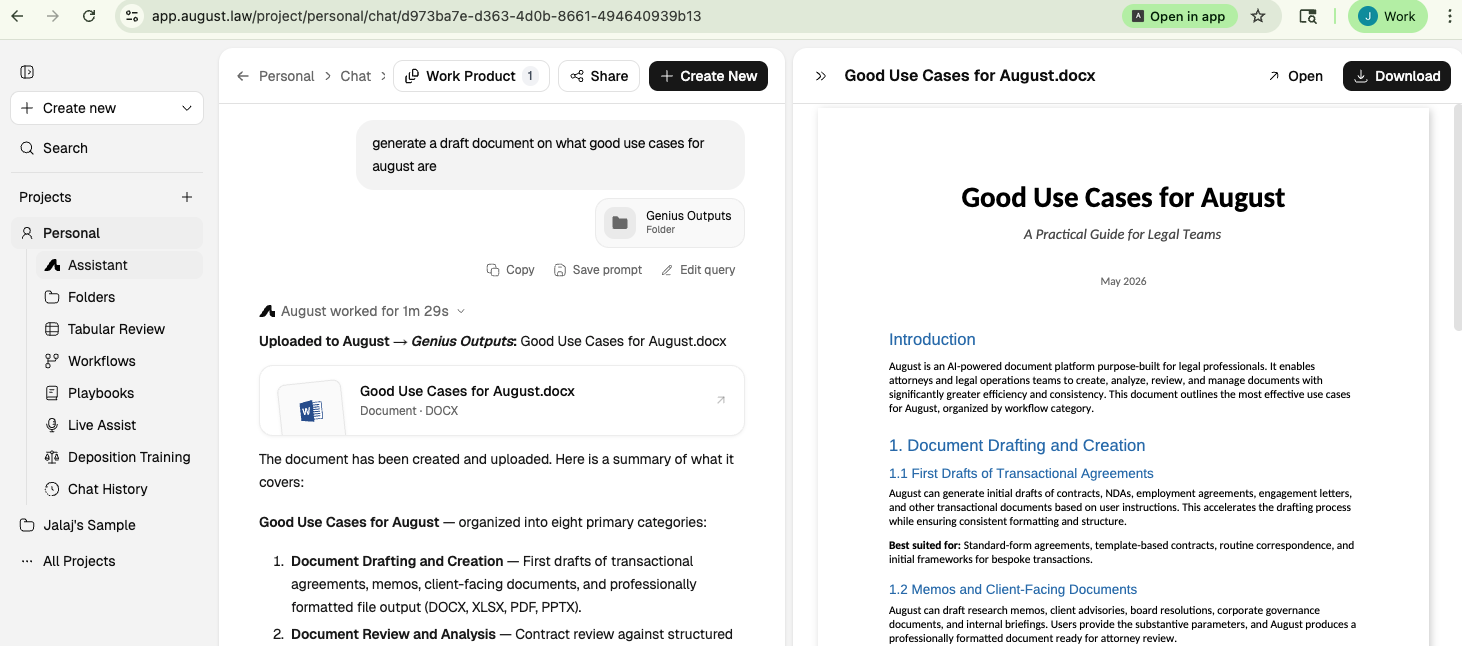
Drafts are structured outputs with citations tracing back to source documents.
How Drafts Are Created
Drafts are generated within Assistant when you request work product outputs. Follow this workflow:
Attach context. Upload documents, connect folders, or attach a Playbook to give August the source material for the draft.
Provide instructions. Describe what you need in natural language. Include document type, key constraints, and format preferences.
Iterate in the conversation. Refine the output with follow-up prompts until the draft meets your needs.
Example prompt: "Draft a memo summarizing the key commercial risks in this NDA. Include specific clause references and flag any non-standard terms. Format as bullet points."
For stronger drafts, provide precedent language, core facts, and audience constraints in your instructions. The more context you supply, the more tailored the output.
How Drafts Are Saved
Drafts are automatically saved as part of the Assistant conversation. Each response from August becomes part of the conversation thread, preserving your draft outputs in place.
You do not need to take any action to save a draft—it remains in the conversation history. To return to a draft later, reopen the conversation through chat history.
Accessing and Resuming Drafts
To return to a draft you created earlier:
Click Chat history in the left navigation panel.
Search by keyword or browse by date to find the conversation.
Click the conversation to reopen it with full context restored.
Scroll to the draft output, or continue iterating with additional prompts.
All documents, context, and conversation history are preserved when you reopen a conversation. Resume exactly where you left off.
Exporting Drafts to Word or PDF
When a draft is ready to move out of Assistant:
Locate the draft output within the conversation.
Click the export option to download as DOCX or PDF.
Open the exported file and continue revisions in your preferred editor.
DOCX is the recommended format for drafts, agreements, and any documents where you need editable tracked changes. Use PDF for finalized outputs or when sharing with external parties.
For in-document editing after export, use the Word Add-In to continue drafting with AI assistance directly in Microsoft Word.
Drafts vs. Chat History: What's the Difference
Chat history is your chronological history of all Assistant conversations. It is an index that helps you find and reopen past work.
Drafts are the outputs generated within those conversations. A single conversation may contain multiple drafts, iterations, and related analysis.
Aspect | Chat history | Drafts |
|---|---|---|
What it is | Conversation history and navigation | Work product outputs within conversations |
Purpose | Reopen past conversations to continue work | Generate exportable memos, summaries, and documents |
Access | Left navigation panel | Within Assistant conversations |
Export | No — Chat history is navigation only | Yes — Export to DOCX or PDF |
Think of chat history as the filing system and drafts as the documents inside. Use chat history to find the conversation, then scroll or search within that conversation to locate specific draft outputs.
When to Use the Drafts Workflow
Use Assistant drafts when you need to:
Generate a first-pass memo or summary from matter documents
Draft initial language for agreements or clauses based on precedent
Produce structured analysis with citations for verification
Iterate on an output through back-and-forth prompting
For recurring tasks that follow a consistent pattern, consider building an Agent to automate the process. For clause-by-clause review and redlining in an existing document, use the Word Add-In instead.
What to Read Next
Assistant Overview for the main workspace and query flow.
Chat history for finding and reopening past conversations.
Word Add-In Overview for continuing drafts with AI directly in Microsoft Word.