

Chat History
Chat history is your chronological history of all Assistant conversations. Use it to reopen earlier work and continue without starting over.
What Chat History Contains
Every conversation you start in Assistant appears in chat history, organized by date. This creates an archive you can search and return to at any time.
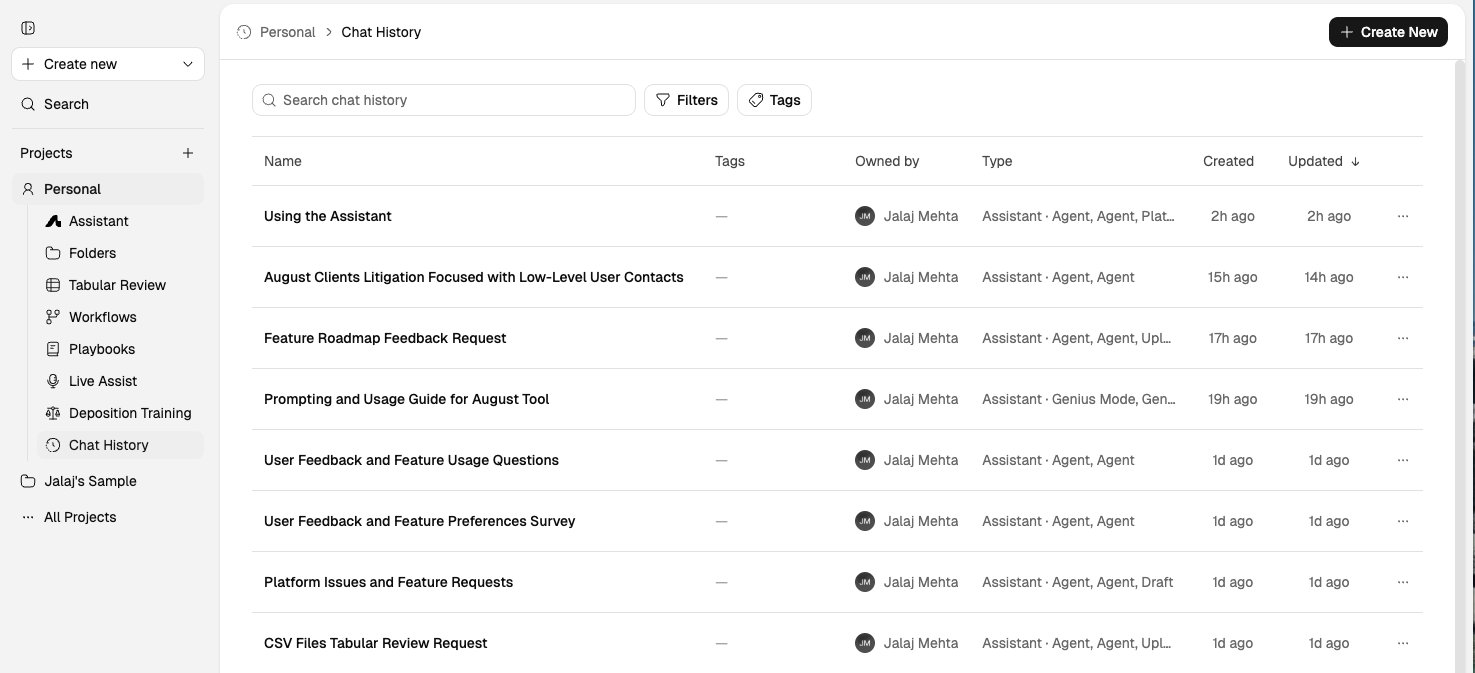
Chat history shows all your past Assistant conversations, organized by date.
Word Add-in users: The Word Add-in has its own Recent Chats dropdown for conversations started inside Word. These appear alongside your other conversations in the main Chat History page, but the Word Add-in provides a quick-access view. See Word Add-In Overview for details.
Chat labels for Word conversations: You may notice different labels for your Word Add-in conversations in chat history. Legacy Word chats (created before the naming update) display as Word Add-in. Newer Word chats display as Genius. Both label types refer to the same Word Add-in editing capabilities—all conversations remain fully accessible regardless of the label shown.
How to Find a Past Conversation
Open chat history
Click Chat history in the left navigation panel.
Search by keyword
Use the search bar at the top of the chat history panel. Search matches against conversation titles, message content, and attached document names.
Click result
Click any result to reopen the conversation.
Full context restored
Resume exactly where you left off. All documents, context, and conversation history are preserved.
Search is scoped to the current project if a project filter is active. To search across all conversations, clear the project filter first.
Label and Rename Conversations
Conversations auto-generate titles based on your first query, but you can rename them for easier retrieval:
Hover over an entry in chat history.
Click the options menu (three dots).
Select Rename or Edit Label.
Suggested naming format: Matter Name — Task Description
Examples:
Smith v. Jones — Indemnification Analysis
Q2 NDA Batch Review
ABC Corp — Engagement Letter Draft
When to Use Chat History
Use chat history when you need to:
Continue a research thread from earlier in the day or week
Find a specific analysis you ran but didn't export
Reopen a drafting session to iterate on the output
Review the history of work on a particular matter
What to Read Next
Assistant Overview to understand the main workspace.